Command line interface (CLI)
General
Caliber comes with a command line interface (CLI) 🎉. The CLI is designed to offer assistance without requiring the user to have complete knowledge about its API. This means that you can simply type caliber in your terminal, and hit enter, to get started.
The response from the CLI shown below tells you immediately the caliber version that is installed on your system, the options that are available for the command you typed and the sub-commands that are available. Think of the options as flags you can set either to trigger a specific behaviour or to provide additional input. Think of the commands as functions that are available through the CLI.
 Usage: caliber [OPTIONS] COMMAND [ARGS]...

 Caliber v0.4.0.

╭────────────────────────────────────────────────────── Options ───────────────────╮
│ --help  -h        Show this message and exit.                                    │
╰──────────────────────────────────────────────────────────────────────────────────╯
╭────────────────────────────────────────────────────── Commands ──────────────────╮
│ pinion      Work with pinions.                                                   │
│ project     Work on projects.                                                    │
│ queue       Work with a queue.                                                   │
│ transport   Work with transports.                                                │
│ workflow    Work on workflows.                                                   │
╰──────────────────────────────────────────────────────────────────────────────────╯
Available CLI commands
The CLI includes commands for working with workflows, transports, pinions , projects, and queues, and is fully documented here.
No response when typing caliber?
So, you typed caliber in your terminal, but nothing happened? This usually happens when the folder where caliber.exe is located is not found in any of the folders on your path. When you install Python, make sure to install it somewhere you do not need admin rights to edit. And if you need admin rights to edit, make sure to have admin rights when pip-installing packages 💪. Try uninstall caliber, open a new terminal with admin rights, and reinstall.
Use the CLI to initialize a new project
Navigate to an empty folder and type caliber project init to initialize a new project ✨
When you execute a valid command, e.g. caliber workflow run ..., the terminal is put in to application mode and the Text User Interface (TUI) is activated. The TUI is created with Textual. The TUI is responsible for rendering output in the terminal. Note how the TUI dynamically updates the output if you resize the terminal, or hit ctrl+d to toggle dark mode.
caliber workflow
If you continue typing caliber workflow and caliber workflow run you get the response below. These responses tell you that you can run, queue or show the workflow by using the CLI, and that these three commands rely on a required JSONFILE.
 Usage: caliber workflow [OPTIONS] COMMAND [ARGS]...

 Work on workflows.

╭────────────────────────────────────────────────────── Options ───────────────────╮
│ --help  -h        Show this message and exit.                                    │
╰──────────────────────────────────────────────────────────────────────────────────╯
╭────────────────────────────────────────────────────── Commands ──────────────────╮
│ queue   Put a workflow in a queue.                                               │
│ run     Run a workflow.                                                          │
│ show    Show a workflow.                                                         │
╰──────────────────────────────────────────────────────────────────────────────────╯
 Usage: caliber workflow run [OPTIONS] JSONFILE

 Run a workflow.

╭────────────────────────────────────── Arguments ─────────────────────────────────╮
│ *    jsonfile      TEXT  A .json-file with a description of the workflow.        │
│                          [default: None]                                         │
│                          [required]                                              │
╰──────────────────────────────────────────────────────────────────────────────────╯
╭─────────────────────────────────────── Options ──────────────────────────────────╮
│ --bell            Play the console bell when the workflow is completed.          │
│ --help  -h        Show this message and exit.                                    │
╰──────────────────────────────────────────────────────────────────────────────────╯
The JSONFILE is a file with a JSON-representation of the workflow. This file can be written by hand, or it can be written automatically using the .to_json() method of the Workflow class. Try replacing the last line in the branchprocess example with the code below.
make_pasta.to_json('pasta.json')
To let print print to the TUI, remember to add from caliber import print in paste_faunctions.py to swap caliber.print() with the builtin print.
Under the hood of the caliber workflow commands
The JSON-representation of the workflow contains all information needed to initialize the tasks, possible branchprocesses and process that is needed to run the workflow. When one of the caliber workflow commands of the CLI is typed, the JSON-file is read, and all the objects in the workflow are instantiated recursively.
Notice that you can get a visualization of the workflow by typing caliber workflow show pasta.json. The command produces a figure as shown below.
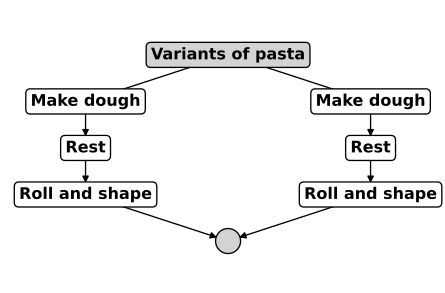
Visualize your Workflow
Use the caliber workflow show command to visualize your workflow before running it! The visualization is useful for verifying that your workflow definition works as intended. Furthermore, if the visualization is displayed without any exceptions being raised, this indicates that all modules and packages are imported as intended and that you will be ready to run.
If you prefer to view your workflow in the terminal, try adding the -t option, i.e. caliber workflow show ... -t.
If you define your workflow inside a notebook, you can use the .show() method to produce an inline visualization.
Debug your workflow
Although the visualization is a good verification of your workflow definition, it will not warn you whether exceptions are likely to be raised when the workflow is run. IDEs like e.g. VS Code have built-in debuggers that are easy to start using. In that case, consider running the workflow directly from e.g. main.py by using the .run() method of the workflow. Furthermore, set breakpoints in the module with your additional functions, start the debugger from main.py, and step through your code!
Get notified when your workflow is completed
When you type caliber workflow run ..., your workflow is executed, and when the workflow is completed, a desktop-style notification is shown in the terminal. If you prefer to also be notified with a sound, try adding the --bell option. This option makes Caliber play the console bell when the workflow is completed 🔔